CSCS Brand Guidelines
Submit an Internal Marketing Request

A Unified Identity for a Growing Mission
This rebrand marks a defining step forward for our school—bringing clarity, unity, and strength to how we present ourselves to our community and beyond. As we continue to grow, it is essential that every expression of our identity reflects who we are at our core: a Christ-centered school committed to excellence in all we do. These brand guidelines have been created to ensure consistency, elevate our visual and verbal presence, and align every team, program, and platform under one unified standard. More than a new look, this is a renewed commitment to represent our mission with purpose, integrity, and excellence in every interaction.
Institutional Identity
The lion icon and wordmarks have been thoughtfully combined into official CSCS logo lockups and are available in two configurations: vertical and horizontal. These lockups are approved for use on white/light backgrounds, navy/dark backgrounds, and gray backgrounds in the color variations shown here. Before using any CSCS logo, please review the guidelines below to ensure proper and consistent application and to avoid common misuses.
White Background
Navy Background
Grey Background
Institutional Icon

Institutional Wordmark
Choosing the Right File Type: AI, EPS, or PNG
If you’re providing a logo to a vendor, it’s always best to check with them first on which file format they prefer.
AI and EPS files are both vector formats and can be used interchangeably. They are typically opened in Adobe Illustrator and are built using mathematical paths rather than pixels. This allows them to be scaled to any size without losing quality or becoming blurry—making them ideal for printing and large-format use.
PNG files, on the other hand, are raster (pixel-based) images. While they work well for digital use, they can lose clarity if enlarged beyond their original size.
Keep in mind that AI and EPS files may not open properly without design software like Adobe Illustrator. However, in many cases, you can still place them into documents or presentations, where they will display similarly to standard image files.
Discontinued Logos




Official School Colors
The colors that define the CSCS brand are outlined here and are a key part of our visual identity. These standards must be followed consistently and should never be altered.
Which color format should I use?
Each color format serves a specific purpose depending on how your design will be used:
- CMYK is used for full-color printing. Choose this format for any printed materials.
- RGB and HEX are designed for digital use. If your design will be viewed on screens—such as websites, emails, or social media—use one of these formats.
- Pantone (PMS) colors are used for custom ink printing. This method is typically more expensive and is reserved for specialty print projects when exact color matching is required.

CMYK: 95, 73, 52, 57
RGB: 7, 41, 57
HEX: #072939

CMYK: 30, 28, 55, 1
RGB: 183, 170, 129
HEX: #b7aa81

CMYK: 17, 11, 13, 0
RGB: 209, 212, 212
HEX: #d1d4d4
Brand Fonts
Typography
Typography plays a key role in maintaining a clear, consistent, and professional CSCS brand. The fonts below have been selected to reflect both strength and readability across all platforms.
Primary Fonts
- Headings: Bebas Neue
- Body Text: Nunito
Bebas Neue provides a bold, clean presence for headlines, while Nunito offers excellent readability for longer-form content in both print and digital formats.
Secondary & Alternate Fonts
- Alternate Body Font: Montserrat
- Letterhead Font: Times New Roman
Montserrat may be used when Nunito is not available, particularly in digital environments. Times New Roman is reserved for formal documents such as letterhead where a more traditional presentation is appropriate.
Email Font (Outlook Compatible)
- Recommended: Arial
For email communications, especially in Outlook, Arial is the preferred alternative. It closely complements Nunito in clarity and tone while ensuring consistent rendering across all devices and platforms.
Logo Typeface
Sheepman is the official typeface used in all CSCS logos, including both institutional and athletic wordmarks. This font is reserved exclusively for logo and brand identity use and should not be used for general design applications.
Because Sheepman is an Adobe font with limited access, any requests to create materials using this typeface must be submitted to the Marketing Team through the form above. This ensures all usage remains consistent, accurate, and aligned with CSCS brand standards.
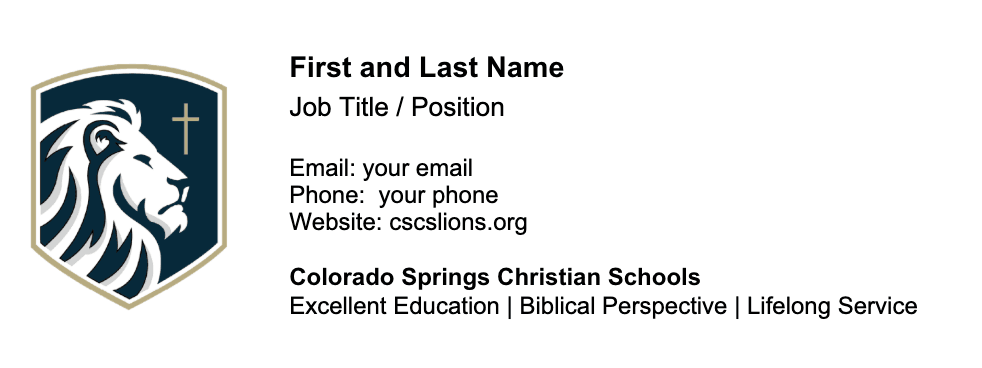
Employee Email Signature
For all faculty and staff
For any members of the Athletic Department

Instructions for Updating Your Email Signature in Outlook
Access the Template Signature:
Go to the OneDrive link where the employee email signature template is stored.
Important: Before making any changes, make a copy of the Word document. Right-click on the document and select “Make a copy.” This ensures you have a backup version in case you need it later.
Update Your Information:
- Open the copied document and fill in your correct details in the appropriate fields (name, title, phone number, etc.).
Copy Your Updated Signature:
Right-click the highlighted text and select Copy or press
Ctrl + C(Windows) orCmd + C(Mac).
Add Your Signature to Outlook:
Open Outlook and click on the Settings wheel in the top right corner.
Select Account from the menu.
Select Signatures in the secondary menu.
In the Signatures tab, click New Signature.
Name your signature and paste your updated signature into the editing box by pressing
Ctrl + V(Windows) orCmd + V(Mac).Click OK to save your new signature.
Need Assistance?
If you run into any issues or need help setting up your signature, please reach out to Steph Bush.
[email protected] or 719-268-5429
school hours
School Year: M-F 7:30 am -3:30 pm
Summer: M-TH 9am – 3pm
Address
CS Campus:
4855 Mallow Road
Colorado Springs, CO 80907
WP Campus:
1003 Tamarac Parkway
Woodland Park, CO 80863
Phone
Admissions: 719-268-2188
Business Office: 719-268-5500
CS High School: 719-535-2727
CS Middle School: 719-535-8968
CS Elementary: 719-535-8965
Woodland Park: 719-686-0706